Advanced Search Dialog
The Advanced Search Dialog is a context-sensitive dialog that is used in multiple places throughout Survey Manager to search, filter, and find objects in the database. It allows multiple criteria to be searched against a single database table.
Let’s walk through the options in the dialog. We will look at the dialog for searching Survey Jobs but the procedure is exactly the same no matter what you are searching for.
Click
Openon the Survey tab under the Jobs group.The dialog shows with options specific to survey jobs:

The dialog is broken into 3 sections:
The top section has 2 combo boxes, a text field, and a button. This is where you define the filter you wish to apply against the database.
In the middle section, there is a grid view that will show the current filters you have applied.
At the bottom are buttons to search the database using all of the filters and also to clear all of the filters.
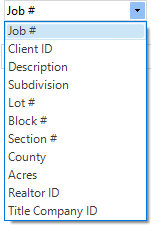
The first combo-box is where you select what you want to search for. This will change depending on what you are looking for. In this case, we are looking for a survey job so there are options relating to a Survey:
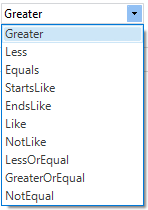
The second combo-box is where you select how you want to match the column selected in step 4. These will not change and will always show the same options no matter what you are searching for:
The text box is where you enter your actual search criteria.
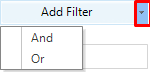
The button is what’s known as a split-button; meaning it has options depending on where you click. The search uses booleans to determine how to combine the various filter rows. If you click the drop-down arrow on the button, the options
AndandOrare displayed. Clicking the button directly implicitly applies theAndboolean to the row.
Note
Booleans are simply logical operators that determine what operation to apply on multiple logical statements. In the context of this dialog, they determine how the dialog should combine your filters to build the full search query.
Once a row is added, it is displayed in the grid in the middle section. Clicking a row and pressing the <DELETE> key on your keyboard will remove that row from the search.
Clicking
Clear Filterwill remove all rows from the search; it will not reset the search text already present in the text box.Clicking
Searchwill take the rows you’ve added and compile them into a single SQL query that is run against the database. If results were found, the dialog will close and depending on the context the dialog is used in, the results will either be displayed or applied.If no results were found from your search, a pop-up will show letting you know and the dialog will remain open.
Tip
If you are only searching by one criteria and do not need to use multiple rows, simply selecting the options for the search and then clicking the Search button is a shortcut. You do not
have to add a row first.
Searching for a Survey
The following example will walk through how to use the dialog to find an existing Survey Job. The example assumes you have a survey job with the Job# 21-5215 and acreage of 5.26 acres.
Click
Openon the Survey tab under the Jobs group.The Advanced Search Dialog opens with options specific to Survey Jobs.
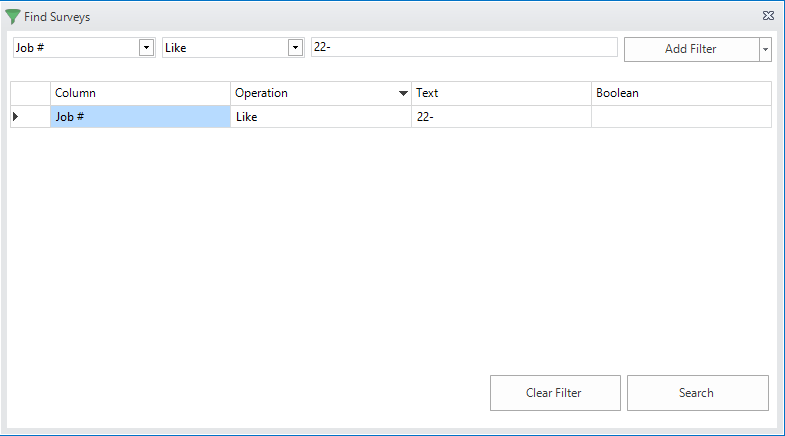
Ensure Job# is selected in the first combo-box, Like is selected in the second combo-box, and the search text is 22-.
Click the
Add Filterbutton directly (not the drop-down arrow) to add this row to the search.
Note
The first row never has an operation applied on it because you need multiple rows to apply a boolean operation.
The search row will display in the grid. Uh-oh, it looks like we accidentally typed 22- instead of 21-. To edit the search text for the row, double-click the cell containing the text. It will become editable. Make your changes and then press <ENTER>

Now, let’s say we also know the acreage of the job. We can also search for that. In the same way as we added the Job# search, let’s add a search for the acreage. However, this time, in the second combo-box, select Greater. Enter 5.00 in the search text and click the
Add Filterbutton to add it to the grid.
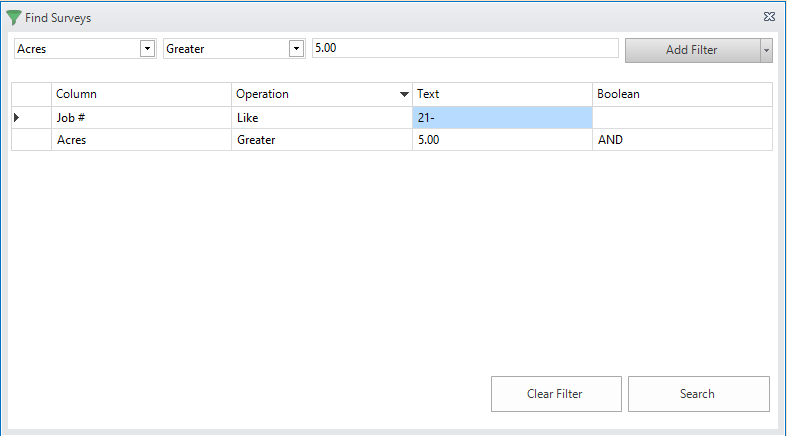
You may notice that the Boolean column in the grid for the second row now says AND. Any subsequent rows after the first one will have a boolean operation applied on them to combine with the other rows.
The search we have built is essentially saying: Find me all Survey Jobs in which the Job# contains 21- AND the Job has an acreage GREATER THAN 5.00.
Clicking the
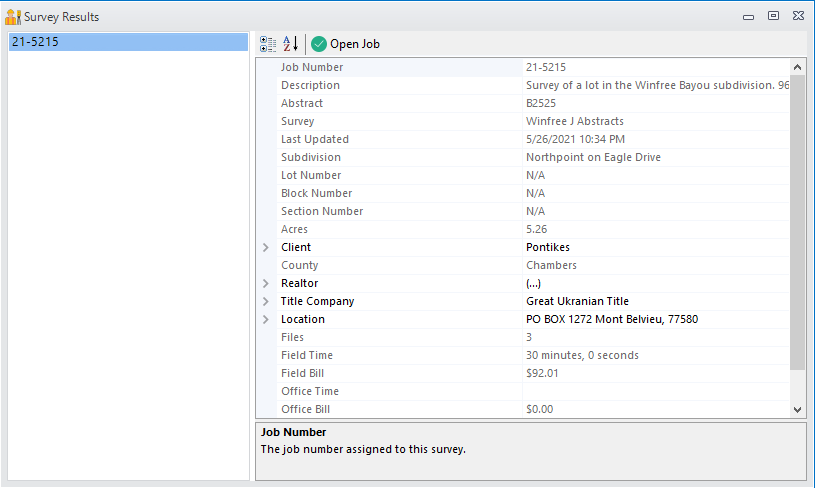
Searchbutton will compile the rows into a query and display the results: